
Let's create
How to make flashcards
This page will show you how to create flashcards from "text files" and "Excel files."Create flashcards using text files
First, open the text file.e.g.) English and Japanese vocabulary
Enter text for the front page on the left, for the back on the right.
Press a tab key to separate the front and back.
▼Sample text
Create flashcards with Excel
First, open the Excel file.e.g.) English and Japanese vocabulary
Enter text for the front in the column A, for the back in the column B.
| Column A | Column B |
|---|---|
| 月曜日 | Monday |
| 火曜日 | Tuesday |
| 水曜日 | Wednesday |
| 木曜日 | Thursday |
| 金曜日 | Friday |
| 土曜日 | Saturday |
| 日曜日 | Sunday |
Options
You can shuffle the cards with the options.Also, CSS allows you to customize the interface of the flashcards.
Settings
Enter the following information in the first line of the text file or Excel file.
#header_write_css:___________ ←Add CSS here.
e.g.) Change the button color to red
#header_write_css:button#start_button{background-color: red !important; }
Messgae to display on the start page
#messages_intro:Add text here.
Enter the text you want to display next to the colon.
Shuffle cards
#shuffle:true ⇒Cards will be dispalyed randomly.
#shuffle:false ⇒ Cards will be dispalyed in the order they are created.
Allow swiping up and down
#swipe_answer:true -> When using a smartphone, swiping up will indicate "MEMORIZED" and swiping down will indicate "NOT SURE."
#swipe_answer:false ⇒Swiping up and down to answer questions will be disabled.
▼ Text
▼Excel
| Column A | Column B |
|---|---|
| #messages_intro: Days of week | |
| #shuffle:true | |
| 月曜日 | Monday |
| 火曜日 | Tuesday |
| 水曜日 | Wednesday |
| 木曜日 | Thursday |
| 金曜日 | Friday |
| 土曜日 | Saturday |
| 日曜日 | Sunday |
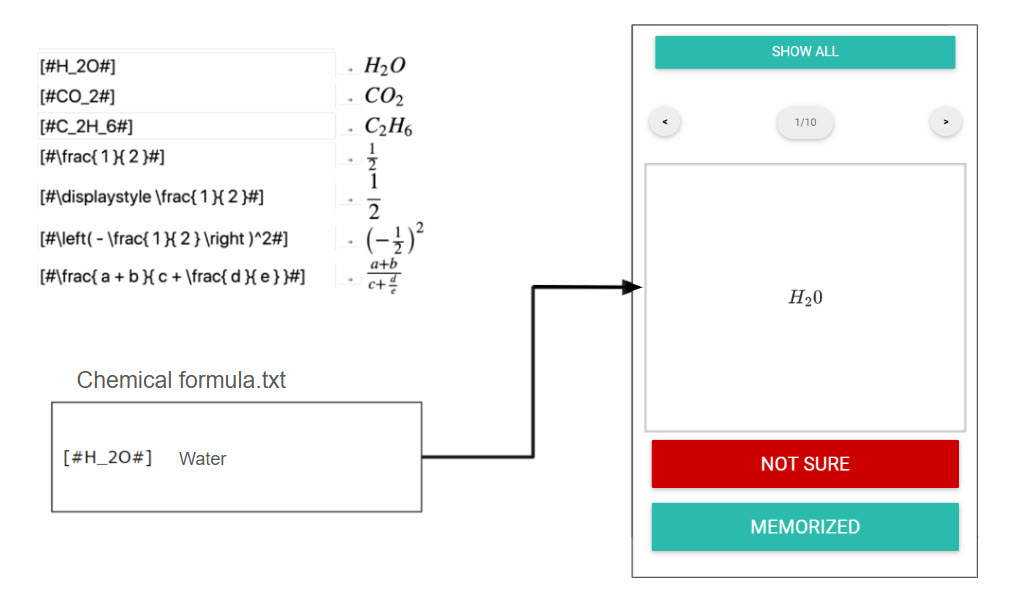
Formula
Enter the formula in Tex format between [# and #].Use the Conversion tool.
Audio
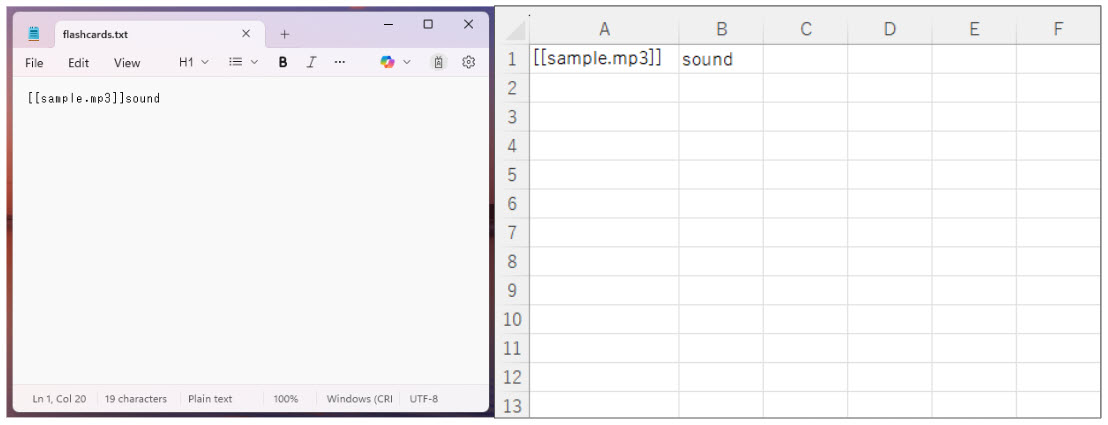
Enter the file name of the audio file (mp3) and enclose the file in [[]].
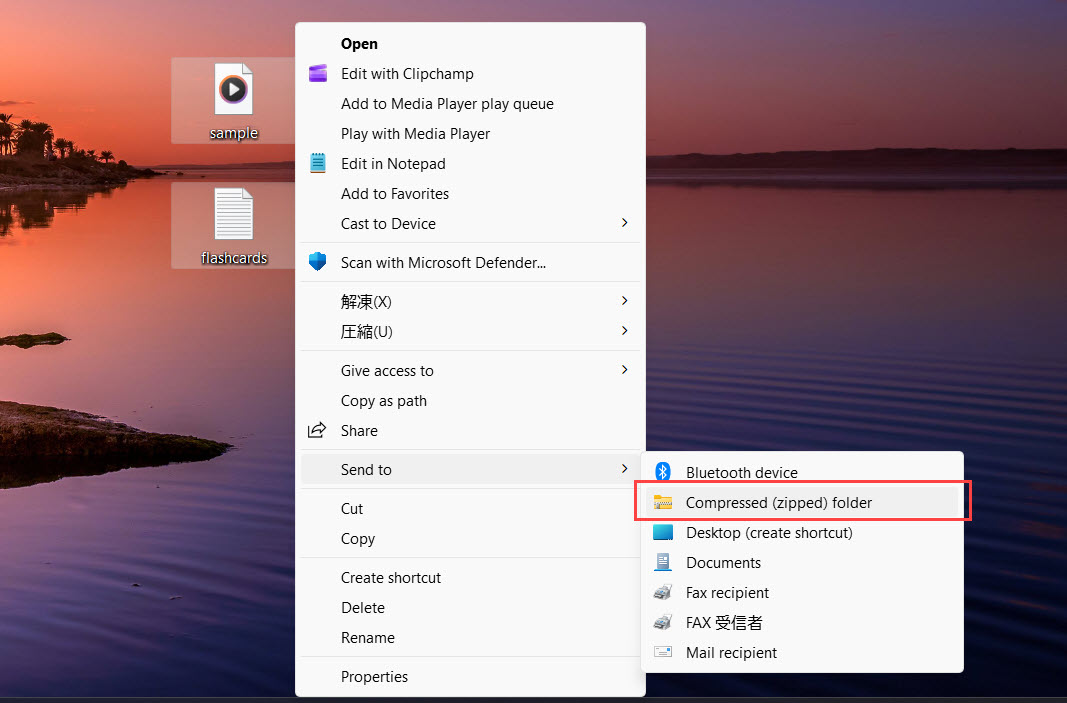
Save the audio file and manuscript file in zip format.
Convert with Flashcard Generator 5.0.1
Upload the file you created.Choose the file from the button below and click the Convert.
Flashcards will be generated.
*Upload file size is up to 30MB.
Save MEMORIZED data
The MEMORIZED value at the bottom of the card will be saved in cmi.suspend_data if the SCORM API exists. If not found, it will be saved in cookie (LocalStorage). Grades are saved when the browser/browser tab is closed. If you need to delete grades, be sure to close the content you are working on, and delete the grades on the LMS or the cookies on the browser.Integration with learningBOX
By integrating with learningBOX (an e-learning system), admins can manage how much learners have worked on flashcards, how many times they have opened them, and more.Assign flashcards so that they can repeatedly practice questions. Using learningBOX, you can easily add and edit the flashcards you have created.
For more details, refer to Create a flashcard.
 EN
EN  JA
JA